Two ways to listen to a PDF on iPhone or iPad, from a quick listen to a whole report or textbook.
Updated


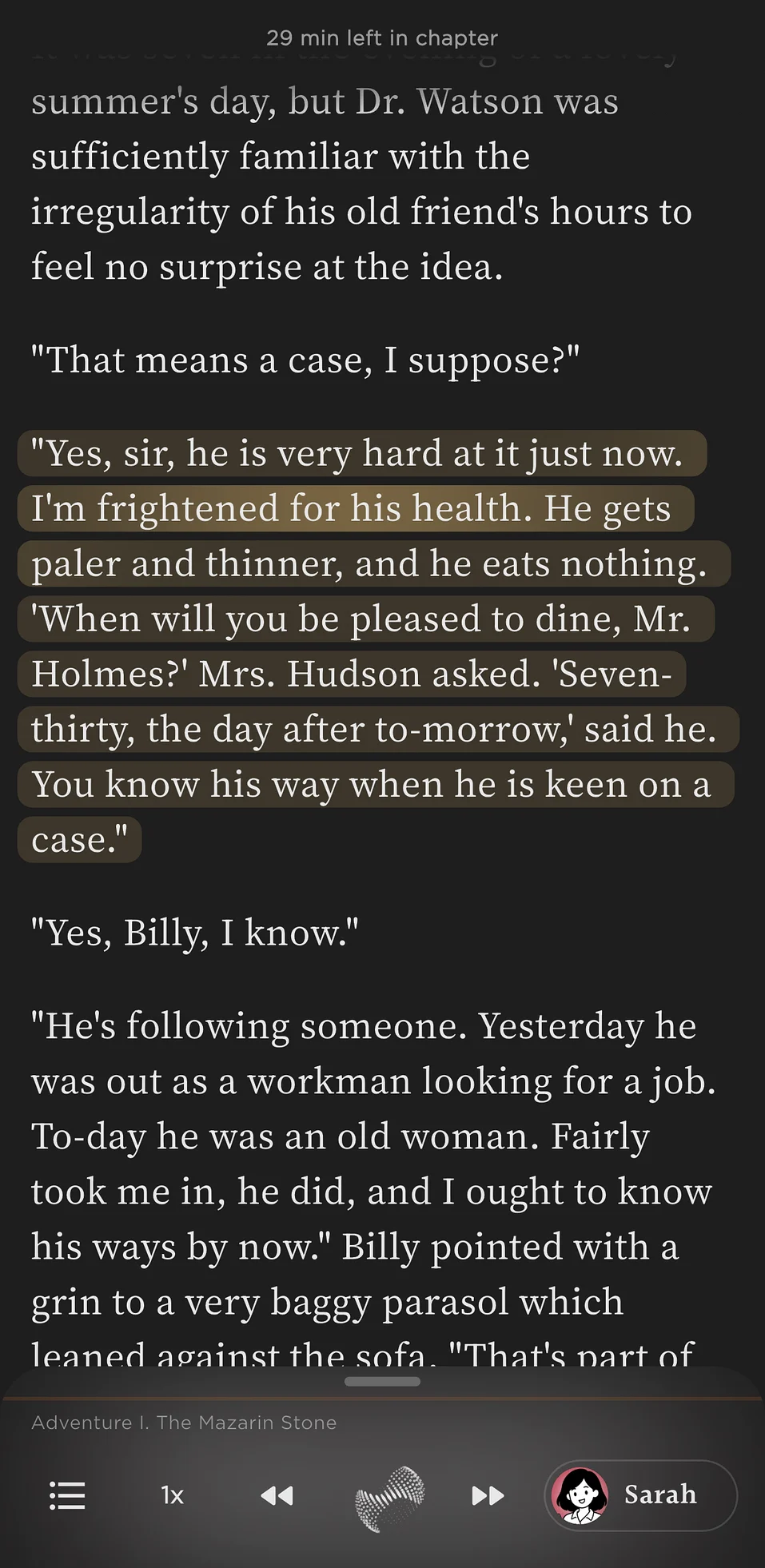
For a page or two, open the PDF in the Files app and use Speak Screen (swipe down with two fingers). For a long PDF, open it in a text-to-speech app such as Readible, which pulls out the text, skips repeated headers and footers, and reads it in order with natural voices and sentence highlighting.
It's free and built in, but it reads whatever is on screen, page numbers and running headers included, and it can lose its place on long documents or multi-column layouts.
Readible turns the PDF into clean, readable text before it speaks: words split across line breaks are joined back together, and headers and footers that repeat on every page are left out, so you hear the content rather than the page furniture. It reads EPUBs and webpages the same way, and it can scan a printed page with your camera.
Yes. Open the PDF in the Files app, turn on Speak Screen in Settings › Accessibility › Spoken Content, and swipe down from the top with two fingers.
Use an app that reads the PDF's text rather than the screen. Readible keeps your place, skips repeated headers and footers, highlights each sentence and lets you set the speed up to 3x.
Readible can scan a printed page with the camera and read it aloud. Text has to be readable in the image.
Speak Screen is free. Readible's free plan includes 10 hours of cloud voices every 30 days and unlimited offline voices.