How to listen to Kindle books on iPhone.

Three ways to have a Kindle book read aloud on iPhone or iPad, what each one costs, and which to pick.

Updated

Download on theApp Store Free on iPhone and iPad
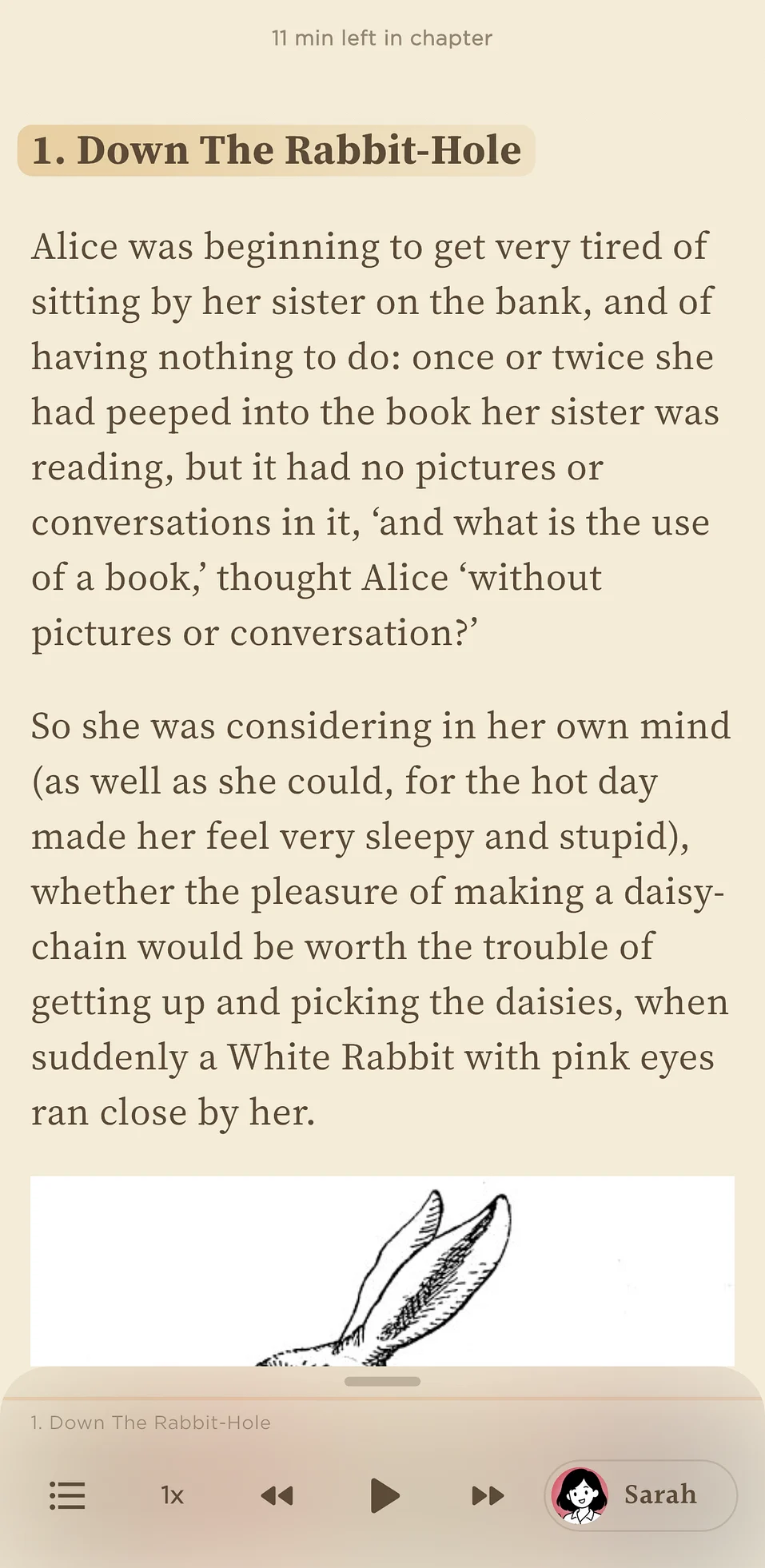
Alice's Adventures in Wonderland being read aloud in Readible, with the sentence highlighted.
Kindle booksYour whole library, read aloud
Sentence highlighting
Short answer

Turn on Speak Screen in Settings › Accessibility › Spoken Content and swipe down with two fingers in the Kindle app for a free, basic read-aloud. Use Audible narration if you bought the audiobook. For natural voices, sentence highlighting and a saved place in every book, use a text-to-speech app such as Readible, which reads your Kindle library directly.

Way 1

Speak Screen, built into iOS.

  1. Open Settings › Accessibility › Spoken Content and turn on Speak Screen.
  2. Open your book in the Kindle app.
  3. Swipe down from the top of the screen with two fingers. Your iPhone starts reading the page.
  4. Use the small controller to pause, skip or change the speed.

Speak Screen is free and already on your iPhone. It reads with the iPhone's built-in voices. In the Kindle app it should move to the next page by itself, but many people report that it sometimes stops or loses its place at a page turn, so it works best for short sessions.

Way 2

Audible narration, if you own the audiobook.

If you also bought the Audible audiobook of a Kindle book, the Kindle app can play the professional narration and keep your place in sync between reading and listening. It's the best-sounding option, but you pay for each audiobook, and many Kindle books have no audiobook at all.

Way 3

A text-to-speech app: Readible.

  1. Install Readible from the App Store. It's free on iPhone and iPad.
  2. On Home, tap Import Kindle book and sign in to your Amazon account inside the app.
  3. Choose a book from your Kindle library. Readible prepares it while you start listening.
  4. Press play. A natural voice reads the book and highlights each sentence; it keeps playing with the screen locked.

Readible works with Kindle books you can open in Amazon's Kindle web reader. You choose ultra-realistic cloud voices or free on-device voices that work offline, set the speed up to 3x, and Readible saves your place in every book. The free plan includes one Kindle import a month. More about Kindle listening in Readible.

Compare

Which way should you use?

WayCostVoicesBest for
Speak ScreenFree, built iniPhone's built-in voicesA quick listen to a few pages
Audible narrationThe price of each audiobookHuman narratorsBooks you also own on Audible
ReadibleFree plan; Pro from $2.99 a monthNatural AI voices, plus offline voicesListening to your whole Kindle library like audiobooks
Questions

Good to know.

Can my iPhone read Kindle books out loud?

Yes. Turn on Speak Screen in Settings › Accessibility › Spoken Content, open the book in the Kindle app, and swipe down from the top with two fingers. For natural voices and highlighting, use an app such as Readible.

Why does Speak Screen stop at the end of a page in Kindle?

It's a known limitation: Speak Screen reads what's on screen and relies on the Kindle app to turn the page, which doesn't always work. Updating iOS and the Kindle app can help. Apps that read the book's text directly, such as Readible, don't depend on page turns.

Is there a free way to listen to Kindle books?

Speak Screen is free. Readible's free plan also includes one Kindle import a month, 10 hours of cloud voices every 30 days and unlimited offline voices.

Does this work on iPad?

Yes. Speak Screen, the Kindle app and Readible all work on iPad.

Turn your reading pile into listening time.

Download on theApp Store Free on iPhone and iPad

The Readible app icon: an orange book on a dark teal background.